The moment you own 200 physical assets, the label problem stops being cute. You buy a thermal label printer, plug it into a Linux box, and discover that the vendor driver does not exist for your architecture, the “page size” settings are wrong by two millimetres, and every barcode you print is unreadable at 45°.
The fix is to stop using printer drivers entirely. The three projects below talk to the printer’s native command language instead — which is why they work headlessly, in Docker, on a Raspberry Pi, from a cron job. Star counts and versions were read from the upstream repositories and package registries on 2026-10-25.
Quick Verdict
- Brother QL →
brother_ql(721★, PyPI 0.9.4). Bypasses the entire printing system and sends raster instructions straight to the printer over USB, network or the Linux kernel device. This is the most mature of the three and the only one with a properprintCLI that handles die-cut label sizes for you. - Niimbot →
niimprint(471★). Small, honest, USB-serial or Bluetooth client for B1/B18/B21/D11/D110. If your labels are 50×30 mm asset tags and you already own a Niimbot, this is the whole toolchain. - Zebra / ZPL-compatible fleet →
BinaryKits.Zpl(410★, NuGet 3.3.1). ZPL II is emulated by a huge range of industrial printers, and this .NET toolkit both builds labels and renders previews locally — the piece that lets you test a layout in CI without a printer on the desk.
The rule that decides it: print fewer pixels, not more features. All three produce 1-bit output at the printer’s native resolution. Everything that goes wrong later — unreadable barcodes, clipped text, smeared QR codes — comes from ignoring that.
Side-by-Side Comparison
| Dimension | brother_ql | niimprint | BinaryKits.Zpl |
|---|---|---|---|
| GitHub stars | 721 | 471 | 410 |
| Latest package version | 0.9.4 (PyPI) | 0.0.1 (PyPI, source-first) | 3.3.1 (NuGet) |
| Last upstream push | 2026-01-09 | 2026-03-15 | 2026-08-21 |
| Language | Python | Python 3.11 | C# / .NET |
| Transport | USB (pyusb), TCP :9100, /dev/usb/lp* | USB serial, Bluetooth | Whatever emits ZPL: raw TCP, USB, CUPS raw queue |
| Printer families | Brother QL-500 … QL-1115NWB | Niimbot B1, B18, B21, D11, D110 | Zebra and ZPL II emulators |
| Native resolution | Model-dependent (typically 300 dpi) | 8 px/mm ≈ 203 dpi | Printer-defined (203/300/600 dpi) |
| Preview without hardware | No | No | Yes — local viewer + Labelary client |
| Docker story | Community images | None (pip/poetry) | Viewer image published to Docker Hub |
| Driver required | No | No | No |
| Best fit | Network-attached QL on a server | Desk-side asset tags | Industrial/multi-vendor fleets |
Decision Matrix
| Your situation | Recommended | Why |
|---|---|---|
| QL-800 on the LAN, printing from a container | brother_ql | tcp://host:9100 backend, no driver, no CUPS |
| Niimbot D11 in a drawer, 40 tags a week | niimprint | One CLI, USB or Bluetooth, model presets built in |
| You must template labels and preview before printing | BinaryKits.Zpl | Local ZPL renderer + Labelary client |
| Mixed printer brands in one warehouse | BinaryKits.Zpl (emit ZPL) | ZPL II is the lingua franca |
| Labels generated nightly from inventory data | brother_ql or ZPL + raw queue | Both are scriptable; avoid GUI-only tools |
| Two-colour labels (black + red) | brother_ql | QL-800 series supports red on DK-22251 stock |
| Bluetooth-only printer with no USB port | niimprint | Explicit Bluetooth transport, documented MAC quirk |
brother_ql: The One That Skips the Print System
The package’s own rationale is the reason to use it: it implements the QL raster language directly, so no printer driver is involved. That matters because Brother does not ship a driver for Linux on ARM, and even where drivers exist, applications get label margins wrong.
| |
The CLI is a thin, well-designed wrapper over the raster encoder:
| |
For a network printer — the only sane option when the label job runs inside a container — switch the backend and identifier:
| |
Facts worth pinning before you deploy:
- Backends are
pyusb,networkandlinux_kernel.linux_kerneluses/dev/usb/lp0and is Linux-only;pyusbis the cross-platform path;networkspeaks raw to port 9100. - Label sizes are enumerated, not free-form. Run
brother_ql info labelsfor the full list with ideal pixel dimensions. Guessing at-l 62when your stock is 29×90 mm die-cut produces exactly the clipped output you are trying to avoid. - Global options have environment variables.
BROTHER_QL_MODELandBROTHER_QL_PRINTERmean your wrapper scripts do not have to repeat the hardware description — useful in systemd units and cron jobs. - QL-800 series “Editor Lite” mode must be off for USB printing: hold the button until the LED goes out.
-c/--compressshrinks the instruction file substantially on models that support it; it costs a little label-generation time and nothing at print time.
niimprint: Small Printer, Small Tool
niimprint is a fork of the original Niimbot client with a cleaner CLI, a transport abstraction for USB vs Bluetooth, and Python 3.11 support. It is deliberately not a framework:
| |
Install with Poetry (the recommended path) or plain pip:
| |
The hardware facts you cannot guess from the CLI help:
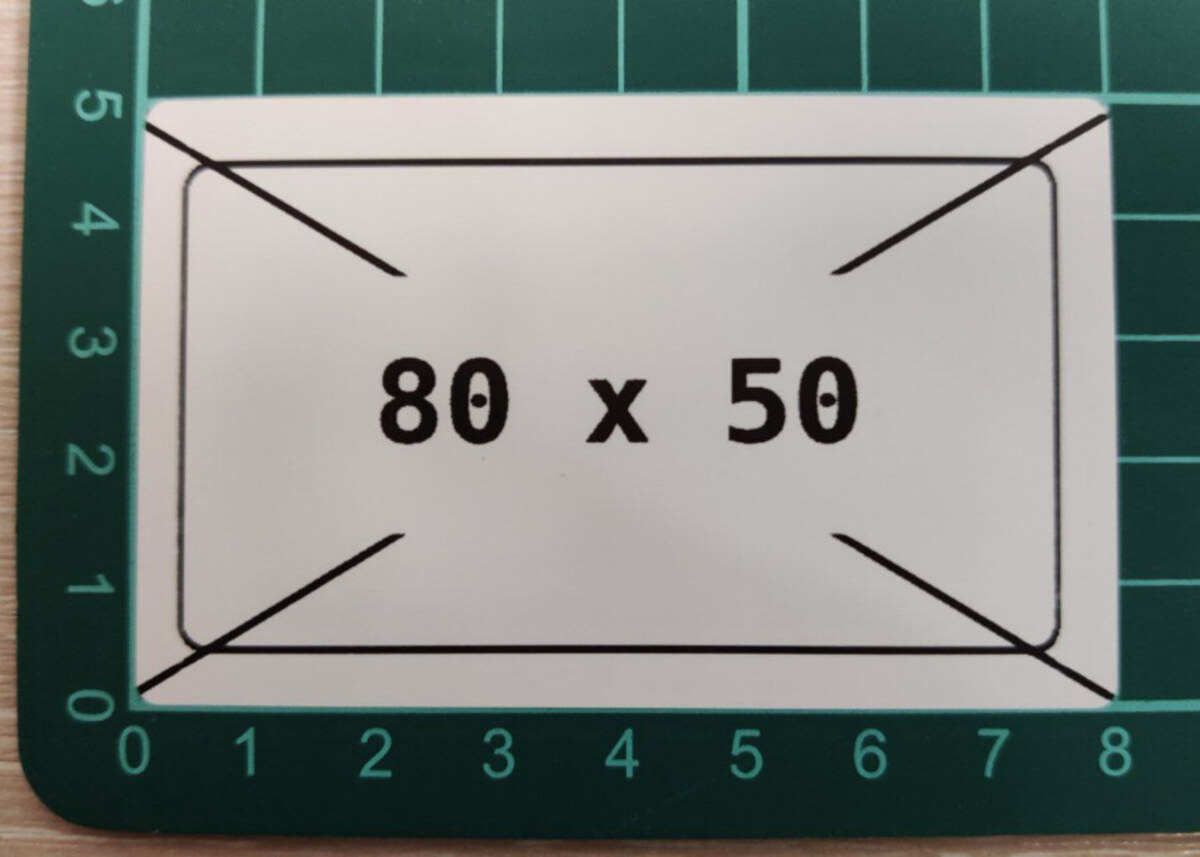
- 8 pixels per millimetre (~203 dpi). Maximum image width is 384 px for B21/B1/B18 and 96 px for D11. The tool checks width but not label length — feed it a 600-px-tall image and you get a partially printed label, not an error.
- USB auto-detection fails with multiple serial ports. Pass
--addr /dev/ttyUSB0(or/dev/serial/by-id/...) explicitly when the machine also has a Zigbee stick or an Arduino attached. - Some Niimbot models present two Bluetooth MACs whose first three bytes are rotated. Only one exposes a
Serial PortUUID — check withbluetoothctl infobefore you conclude the printer is broken. Abr-connection-profile-unavailablewarning here is expected and printing still works.
BinaryKits.Zpl: Labels You Can Test Without a Printer
ZPL II is a text protocol, and that is its superpower: a label is a string you can diff, template, version and snapshot-test. BinaryKits.Zpl ships several modules — BinaryKits.Zpl.Label for the building blocks and image conversion, BinaryKits.Zpl.Protocol for raw commands, BinaryKits.Zpl.Labelary as a client for the Labelary preview service, and BinaryKits.Zpl.Viewer, a local ZPL-to-image renderer.
| |
The minimal payload you will actually send looks like this — standard ZPL II, printable by any emulating device:
| |
Send it to a raw TCP listener on the printer:
| |
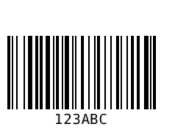
Barcode support in the library covers Code 128, Code 39, EAN-13, Interleaved 2 of 5, Codabar and QR codes — which is more than the two hardware-specific tools offer, because ZPL itself carries the symbology.
Wiring Labels Into Your Inventory Stack
The label is the last mile of an inventory system, and the failure is almost never the printer — it is the ID. Print the asset tag from a single source of truth so the code on the label and the record in the database never diverge:
- Generate the payload from the inventory API, not from a spreadsheet copy. Asset ID, serial, warranty date, and a deep link encoded as a QR code.
- Render to a 1-bit PNG at the printer’s native width (384 px for B21/B1/B18, 696 px for a 62 mm Brother endless roll at 300 dpi, and so on). Scale text in integer pixels, never with float transforms.
- Preview before printing if the format supports it. For ZPL, render through the viewer; for raster-only printers, print one test label and measure it with calipers before running the batch.
- Keep quiet zones. A Code 128 symbol with 2 mm of white space on each side scans reliably; the same symbol edge-to-edge with a border fails on half the scanners in the building.
Our Snipe-IT vs InvenTree vs PartKeepr comparison covers where those asset IDs should live, and the self-hosted QR/barcode API guide shows how to generate the codes as a service instead of shelling out per label. If you would rather route everything through a normal print queue, the CUPS vs IPP Everywhere vs Samba print server guide explains when a raw queue is the right integration point.
Pitfalls That Cost Real Labels
- Thermal printers are not laser printers. Density too high smears and burns the printhead; too low makes barcodes fail. Start at the default (
-d 5on Niimbot) and change one step at a time — and clean the head with isopropyl alcohol before you blame the software. - Do not upscale text. Raster label printers are 1-bit. Anti-aliased 12 px text becomes grey mush after thresholding; use a bitmap-friendly font at integer sizes, or
ditherdeliberately (brother_ql -d) instead of accidentally. - USB permissions bite on servers. A
pyusbfailure as a non-root user is almost always udev rules, not the library. Add a rule for the vendor/product ID rather than running the job as root. - Bluetooth printing is not a service. It has no queue, no retry and no status. For anything scheduled, use USB or network — Bluetooth is for the desk-side case where a human is watching.
- CUPS raw queues are the sane fallback when an app insists on printing through a system queue: create the queue as raw, point it at
socket://printer:9100, and let CUPS forward bytes it does not understand. - Version-pin your label code. A layout change that shifts the barcode 3 mm is invisible in code review and obvious only after 200 labels are on assets. Snapshot the generated PNG or ZPL string in tests.
Why Self-Host the Label Pipeline?
Label printing is the least glamorous part of a homelab and the one most likely to be rented from a cloud service — which means your asset IDs, warranty dates and internal URLs leave your network every time someone prints a tag. Keeping the whole path local — inventory database, label renderer, printer on your own VLAN — costs one Raspberry Pi and removes a data-sharing decision you should not have to make.
It also survives the cloud. A cron job that reads your inventory API and prints to tcp://printer:9100 keeps working when the vendor’s SaaS changes its pricing page, and the ZPL or raster payload is a file you can inspect, version and re-print five years from now.
FAQ
Can I print labels from a Docker container without a driver?
Yes — that is the entire point of these tools. Give the container network access to the printer’s raw port (tcp://192.168.1.21:9100) and use brother_ql -b network or a raw ZPL socket write. No CUPS, no drivers, no host printing subsystem involved.
What resolution should I design labels at?
Match the printer, exactly. Niimbot models are 8 px/mm (~203 dpi) with a 384-px maximum width on B21/B1/B18 and 96 px on D11. Brother QL models vary by model and label stock — run brother_ql info labels and use the pixel dimensions it reports rather than scaling a design from another printer.
Do I need a Zebra printer to use ZPL?
No. ZPL II is emulated by a large number of label printers from other manufacturers, which is exactly why the BinaryKits.Zpl documentation notes that its output works across most devices. If your printer accepts ZPL, you can template labels as text and preview them without hardware.
Why is my printed barcode unreadable even though it looks fine on screen?
Three usual causes: printing below the native resolution (upscaled or anti-aliased edges), missing quiet zones around the symbol, or density set so high that bars bleed together. Print at native pixel dimensions, leave 2 mm of white space on both sides, and lower density one step before changing anything else.
How do I print a batch of 200 labels without babysitting it?
Generate one image or ZPL payload per asset from your inventory API, write them to a directory, and loop over them against a network printer with a short delay and a per-label exit-code check. Skip the Bluetooth path entirely for batches — it has no queueing or retry semantics, so a single dropped connection silently loses labels.
💰 想测试你的市场判断力?我用 Polymarket 做预测市场交易——这是全球最大的预测市场平台,从大选结果到技术监管时间线,什么都可以押注。和赌博不同,这是真正的信息市场:你懂的信息越多,胜率越高。我靠预测技术相关事件的走向已经赚了不少。用我的邀请链接注册:Polymarket.com