Taking control of your data by running a home server is one of the most rewarding projects you can tackle. Instead of relying on Google Drive, iCloud, or Spotify, you can host your own file sync, media streaming, password vault, and dozens of other services on hardware you own.
The biggest hurdle has always been complexity. Setting up a Lidockerrver, configuring Docker, managing reverse proxies, and keeping everything updated requires significant technical knowledge. That is where home server operating systems come in — they provide a web-based dashboard, one-click app installation, and simplified server management.
In this guide, we compare three of the most popular open-source home server platforms: CasaOS, Umbrel, and YunoHost. Each takes a different approach to self-hosting, and the right choice depends on your technical comfort level, hardware, and what you want to run.
Why Self-Host a Home Server OS
Running your own server operating system gives you advantages that cloud services cannot match:
- Full data ownership — your files, photos, and credentials never leave your hardware
- No subscription fees — one-time hardware cost instead of monthly SaaS charges
- Privacy — no telemetry, no tracking, no corporate data mining
- Always available — your services run 24/7 on your own network
- Customizable — install exactly the apps you need, nothing more
Home server OS platforms take the pain out of setup. Instead of manually provisioning Docker containers, configuring nginx reverse proxies, and managing SSL certificates, you get a polished web interface that handles everything. For NAS solutions like OpenMediaVault or TrueNAS, the focus is on storage and file serving. Home server OS platforms go further — they cover apps, services, and user management.
CasaOS — Personal Cloud for Everyone
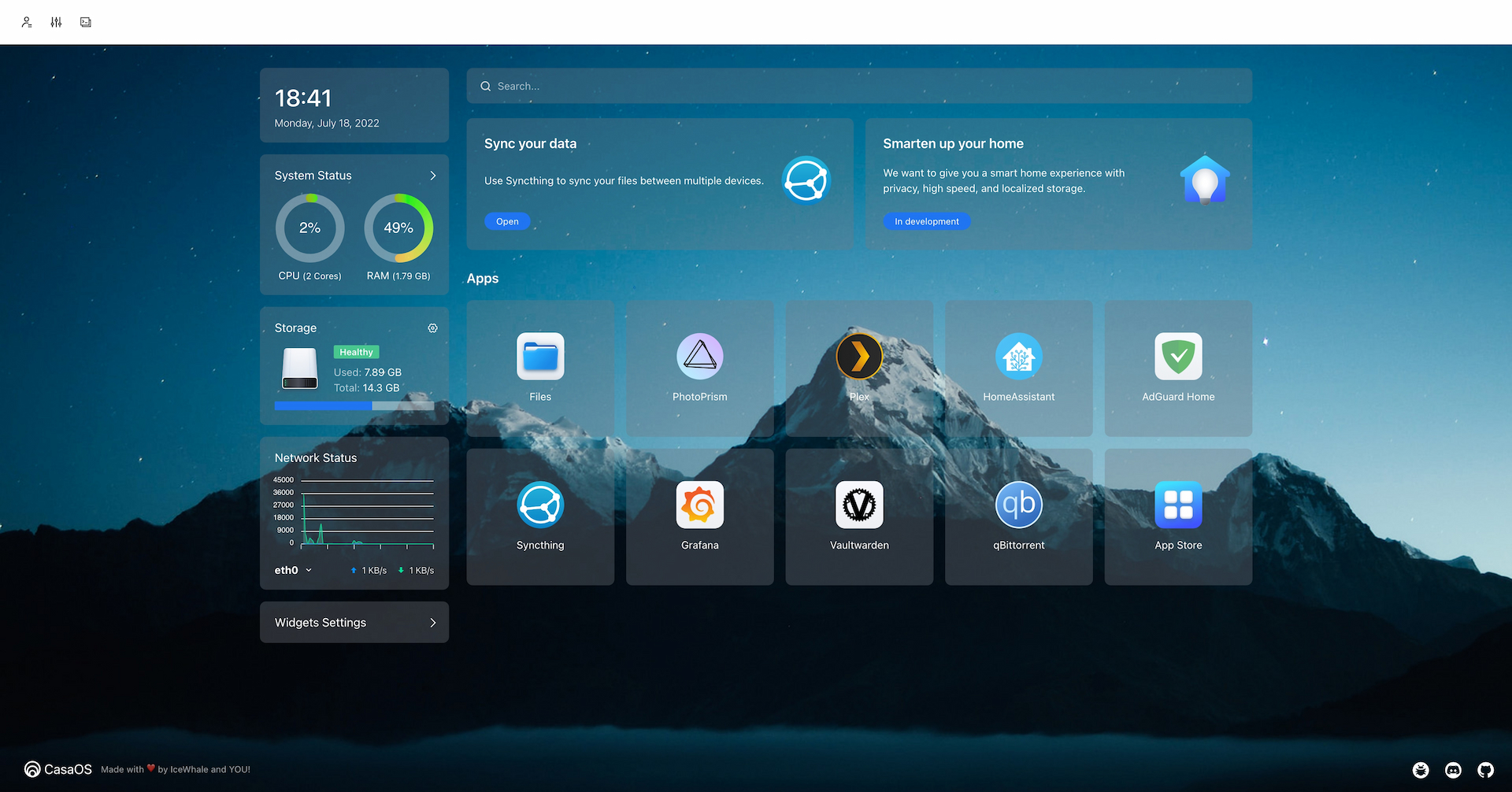
CasaOS is an open-source personal cloud system built by IceWhaleTech. With over 33,600 GitHub stars, it is the most popular home server dashboard by raw popularity. CasaOS runs on top of an existing Linux installation (Ubuntu, Debian, Raspberry Pi OS) and provides a clean, modern web interface for managing apps, files, and storage.
Key Features
- One-click app store — browse and install 100+ community apps (nextcloud, Home Assistant, Jellyfin, Gitea, and more)
- File manager — built-in web file browser with upload, download, and sharing
- Storage management — visualize disk usage, mount external drives, configure RAID
- Docker integration — every app runs in a Docker container, easily managed from the UI
- Cross-platform — install on x86 machines, Raspberry Pi, or any Linux server
- Lightweight — minimal resource overhead, runs well on 2 GB RAM systems
Installation
CasaOS installs with a single command on any supported Linux distribution:
| |
After installation, access the web dashboard at http://your-server-ip:80 (or the port shown in the installer output). The first-run wizard walks through basic setup — creating an admin account and configuring storage locations.
CasaOS App Store Example
Once installed, you can add apps from the built-in store. Here is what a typical deployment looks like for running Jellyfin media server alongside Nextcloud file sync:
| |
CasaOS manages these containers from its dashboard, handling port mapping and volume configuration automatically.
Pros and Cons
| Pros | Cons |
|---|---|
| Easiest setup — single command install | Not a full OS — requires existing Linux installation |
| Beautiful, modern UI | App store has fewer curated apps than Umbrel |
| Lightweight resource usage | Less focus on privacy-hardened configurations |
| Active community and frequent updates | Limited multi-user management features |
| Great for Raspberry Pi deployments | No built-in SSO or user portal |
Umbrel — The Elegant Home Server
Umbrel positions itself as a beautiful, plug-and-play home server OS. With over 11,000 GitHub stars, Umbrel has built a strong following, particularly in the Bitcoin and privacy communities. Umbrel can run as a full operating system on dedicated hardware (Umbrel Home, Raspberry Pi 5) or install on existing x86 systems.

Key Features
- 300+ app catalog — one of the largest curated app libraries for self-hosting
- Bitcoin and Lightning node — run a full Bitcoin node with built-in Lightning wallet
- Remote access — built-in Tor support and optional Umbrel Cloud for off-site connectivity
- Docker-based architecture — every app runs in an isolated container
- Mobile-friendly UI — responsive design works well from any device
Installation
On x86 systems, Umbrel installs via a script similar to CasaOS:
| |
For Raspberry Pi 5, flash the umbrelOS image using Raspberry Pi Imager or dd:
| |
After boot, navigate to http://umbrel.local to complete the initial setup wizard. You will create an admin account and optionally configure Bitcoin node synchronization.
App Deployment
Umbrel uses Docker Compose under the hood. Each app in the catalog is defined with a compose file that specifies the container image, volumes, environment variables, and network configuration. When you install an app from the Umbrel app store, the system pulls the image, creates the container, and sets up the reverse proxy automatically.
Pros and Cons
| Pros | Cons |
|---|---|
| Largest app catalog (300+ apps) | Heavier resource requirements than CasaOS |
| Excellent Bitcoin/Lightning integration | Umbrel Cloud remote access is a paid feature |
| Beautiful, polished UI | Some core components are not fully open-source |
| Strong privacy defaults (Tor built in) | Primarily designed for single-user setups |
| Good hardware ecosystem (Umbrel Home, Pi 5) | Less flexible for custom Docker configurations |
YunoHost — The Complete Server OS
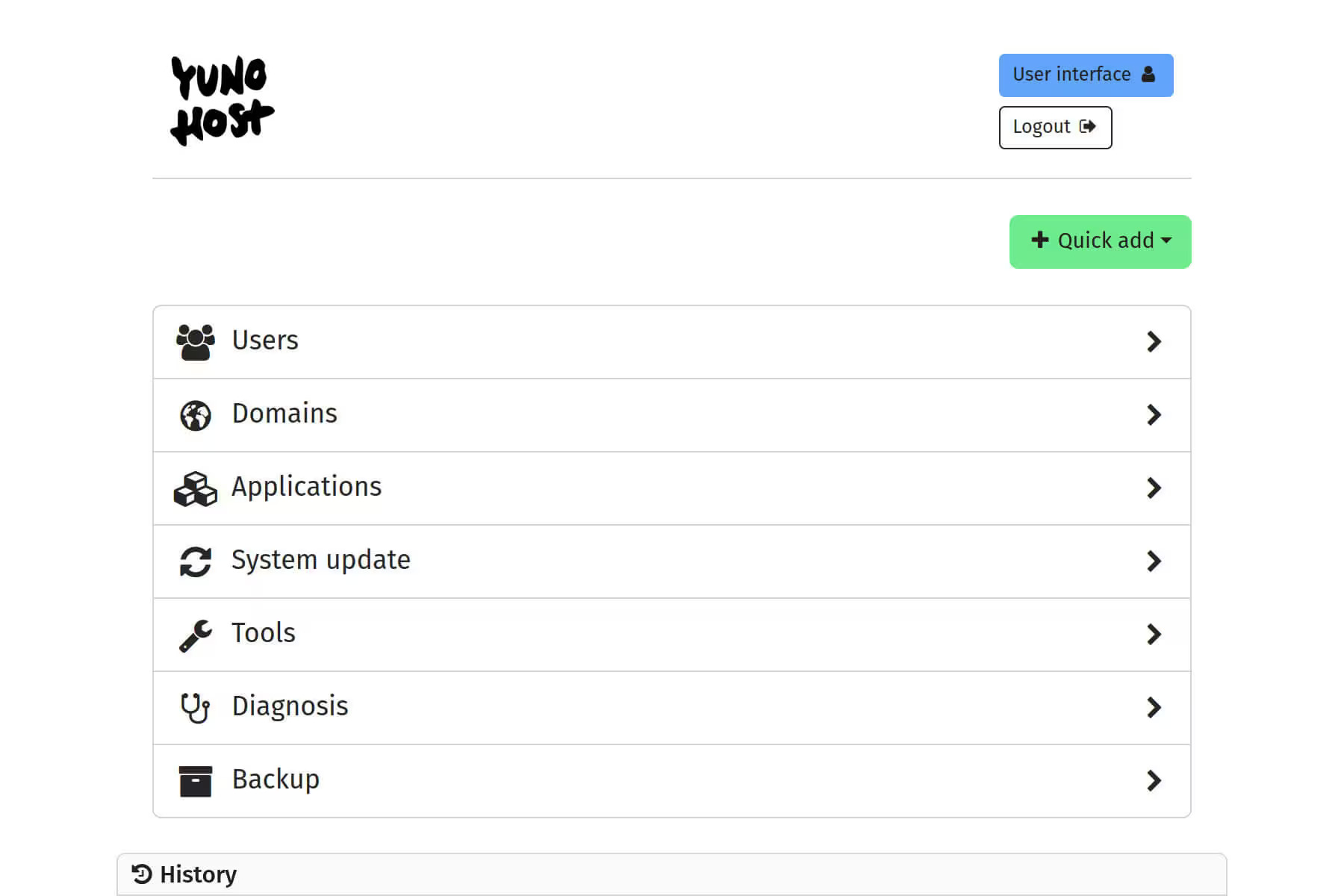
YunoHost is a Debian-based operating system designed to make server administration accessible to everyone. With a strong focus on self-hosting freedom and privacy, YunoHost provides both a user portal (for accessing apps) and a web administration panel (for server management). It supports over 270 curated applications.
Key Features
- Full OS distribution — not just a dashboard, but a complete Debian-based server OS
- 400+ apps — the largest open-source app catalog, including email, CMS, chat, and productivity tools
- Multi-user support — create user accounts, manage permissions, and share resources
- Built-in SSO — single sign-on with a user portal for all hosted services
- Automatic backups — built-in backup and restore for apps and system data
- Email server — full Postfix/Dovecot integration for self-hosted email
- Dynamic DNS — free
.nohost.me,.noho.st, or.ynh.frsubdomains - Debian-based — benefits from Debian’s stability and vast package repository
Installation
YunoHost installs as a full OS image or on top of an existing Debian installation:
| |
For a quick test, you can also run YunoHost in a Docker container:
| |
After installation, access the admin panel at https://your-server-ip/yunohost/admin and the user portal at https://your-server-ip/.
App Management
YunoHost uses its own packaging system (based on Debian packages and shell scripts) rather than Docker. Each app in the catalog is installed via the web admin panel or the command line:
| |
This approach means apps integrate more deeply with the system — they share the same SSO, benefit from the same backup system, and are managed through a unified package manager. For a deeper dive into self-hosting essential tools, see our privacy stack guide covering password managers, search engines, and file sync solutions that pair well with any home server.
Pros and Cons
| Pros | Cons |
|---|---|
| Most comprehensive platform | Steeper learning curve than CasaOS |
| Full multi-user support with SSO | Requires a dedicated machine or VM |
| Built-in email server | UI is functional but less polished |
| Largest open-source app catalog | Non-Docker packaging limits some app choices |
| Mature, well-documented project | Dynamic DNS subdomains may not suit all use cases |
| Free subdomain included | Less suitable for casual/experimental setups |
Head-to-Head Comparison
| Feature | CasaOS | Umbrel | YunoHost |
|---|---|---|---|
| Type | Dashboard on Linux | Full OS / Dashboard | Full OS (Debian-based) |
| GitHub Stars | 33,675 | 11,031 | 2,881 |
| Primary Language | Go | TypeScript | Python/Bash |
| License | Apache-2.0 | Custom/Partial | AGPL-3.0 |
| App Count | 100+ | 300+ | 400+ |
| Installation | Script on existing Linux | Script or OS image | OS image or Debian install |
| Container Runtime | Docker | Docker | Native packages |
| Multi-user | Limited | Single-user | Full multi-user + SSO |
| Email Server | No | No | Yes (Postfix/Dovecot) |
| Remote Access | Manual (reverse proxy) | Umbrel Cloud (paid) / Tor | Built-in DDNS |
| Backup System | Manual | Manual | Built-in |
| Resource Usage | Low (~512 MB RAM) | Medium (~2 GB RAM) | Medium (~1 GB RAM) |
| Best For | Quick personal cloud | Bitcoin + media server | Full server replacement |
| Hardware Support | x86, Raspberry Pi | x86, Raspberry Pi 5 | x86, ARM (Raspberry Pi) |
| Last Updated | 2025-08 | 2026-02 | 2026-04 |
How to Choose
Choose CasaOS if:
- You already have a Linux server running and want a simple dashboard
- You prioritize a beautiful, easy-to-use interface
- You are running on limited hardware (Raspberry Pi with 2 GB RAM)
- You want to get started in under 5 minutes
- You do not need multi-user management or an email server
Choose Umbrel if:
- You want the largest curated app catalog
- You are interested in running a Bitcoin or Lightning node
- You value a polished, consumer-grade experience
- You have a Raspberry Pi 5 or dedicated Umbrel hardware
- You want built-in Tor remote access
Choose YunoHost if:
- You want a complete server replacement, not just a dashboard
- You need multi-user support with single sign-on
- You want to host your own email server
- You value mature, well-maintained open-source software
- You want built-in backups and dynamic DNS
- You prefer a Debian-based system with deep app integration
For users who also need robust file synchronization across devices, pairing any of these platforms with solutions like Nextcloud, Seafile, or Syncthing gives you a complete personal cloud stack.
FAQ
Can I run CasaOS, Umbrel, or YunoHost on a Raspberry Pi?
Yes, all three support Raspberry Pi hardware. CasaOS runs on Raspberry Pi 3 and 4 with as little as 1 GB RAM. Umbrel officially supports Raspberry Pi 5 with at least 4 GB RAM. YunoHost runs on Raspberry Pi 3, 4, and 5 with a dedicated SD card. For the best experience on a Pi, use Raspberry Pi 4 with 4 GB or Raspberry Pi 5 with 8 GB.
Do I need to wipe my existing Linux installation to use these platforms?
CasaOS installs on top of an existing Linux system without affecting your current setup. YunoHost can also install on a fresh Debian installation alongside other services. Umbrel recommends a dedicated installation but can run on x86 systems via its install script. Only YunoHost as a full OS image requires a clean disk.
Can I run Docker containers alongside these platforms?
CasaOS and Umbrel are Docker-based, so you can run additional containers on the same host using standard Docker commands. YunoHost uses native Debian packages rather than Docker, so running Docker alongside it works but is not the primary workflow — you would manage Docker containers separately from YunoHost’s app system.
Which platform is best for beginners?
CasaOS has the lowest barrier to entry — a single install command and a visual dashboard make it ideal for first-time self-hosters. Umbrel is also beginner-friendly with its app store and polished interface. YunoHost has a steeper learning curve but offers the most guidance through its documentation and community forum.
Can I migrate from one platform to another?
Direct migration is not supported because each platform uses different app packaging and data storage approaches. However, since most apps store data in standard formats (SQLite databases, file directories), you can manually export data from one platform and import it into the corresponding app on another. Always back up before attempting a migration.
Do these platforms handle SSL certificates automatically?
YunoHost includes built-in Let’s Encrypt integration and automatically provisions SSL certificates for its dynamic DNS domains. CasaOS and Umbrel require manual SSL setup — you typically need to configure a reverse proxy (like Caddy or nginx) and use certbot for Let’s Encrypt certificates.